New tables, bug fixes and smoother gameplay usually arrive through updates. Here's how to make sure you're on the latest version of Sunflower Game — and why your coins and progress are safe.
In this article (4 sections)
If a table is acting weird, or a friend can see a game mode you can't, the first thing to check is your version. Updates are how we fix bugs and add new stuff, and running an old build is the most common reason things look different on two phones.
Option 1: Update from inside the app
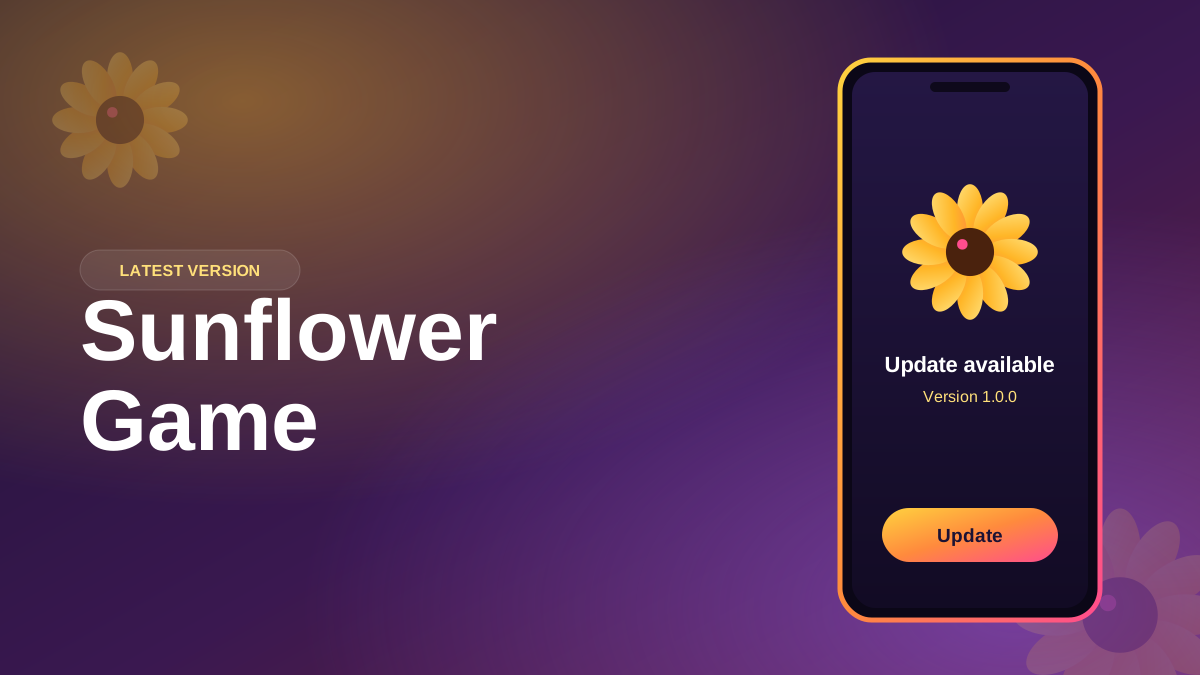
This is the easy way. When a new version is released, you'll see a pop-up the next time you open Sunflower Game. Tap Update, let it download, then tap Install when Android asks. That's it — the game reopens on the new version.
If you tapped "Later" and now can't find the prompt, go to Settings → About inside the app and tap Check for updates.
Option 2: Update manually with the new APK
- Visit the Sunflower Game download page and check the version number listed there.
- Download the latest APK.
- Open the file and tap Update (not Install — Android recognises it's the same app).
- Open the game and confirm the version under Settings → About.
Will I lose my coins or progress?
No, provided your account is linked. Your balance, level, friends list and history are stored on the server, not on your phone. Guest accounts are the exception: they live on the device, so if you uninstall a guest account, it's gone. That's the main reason we suggest linking a number early.
When the update won't install
- Not enough space – clear a few hundred MB and try again.
- "App not installed" – your current copy may have come from a different source. Back up by logging in with your number, uninstall, then install the official APK.
- Update stuck at 99% – switch from mobile data to Wi-Fi (or the other way round) and retry.
Still stuck? Drop us a line through the contact page with your phone model and the error you see. A screenshot helps a lot.